This walkthrough covers the whole path from an empty CV to a file you can attach to an application. Nothing here needs design skills — the layout is handled by the template you pick, and your job is only to supply the content.
What you will end up with: a saved CV in your account, formatted by one of the built-in designs, that you can re-download or duplicate for the next application.
Step by step
Create your account
Choose Create My CV in the top navigation and register with your email. You will confirm the email with a one-time code before the builder opens.
TipUse the email address you actually apply with — your CVs stay in that account.
Fill in My CV Details
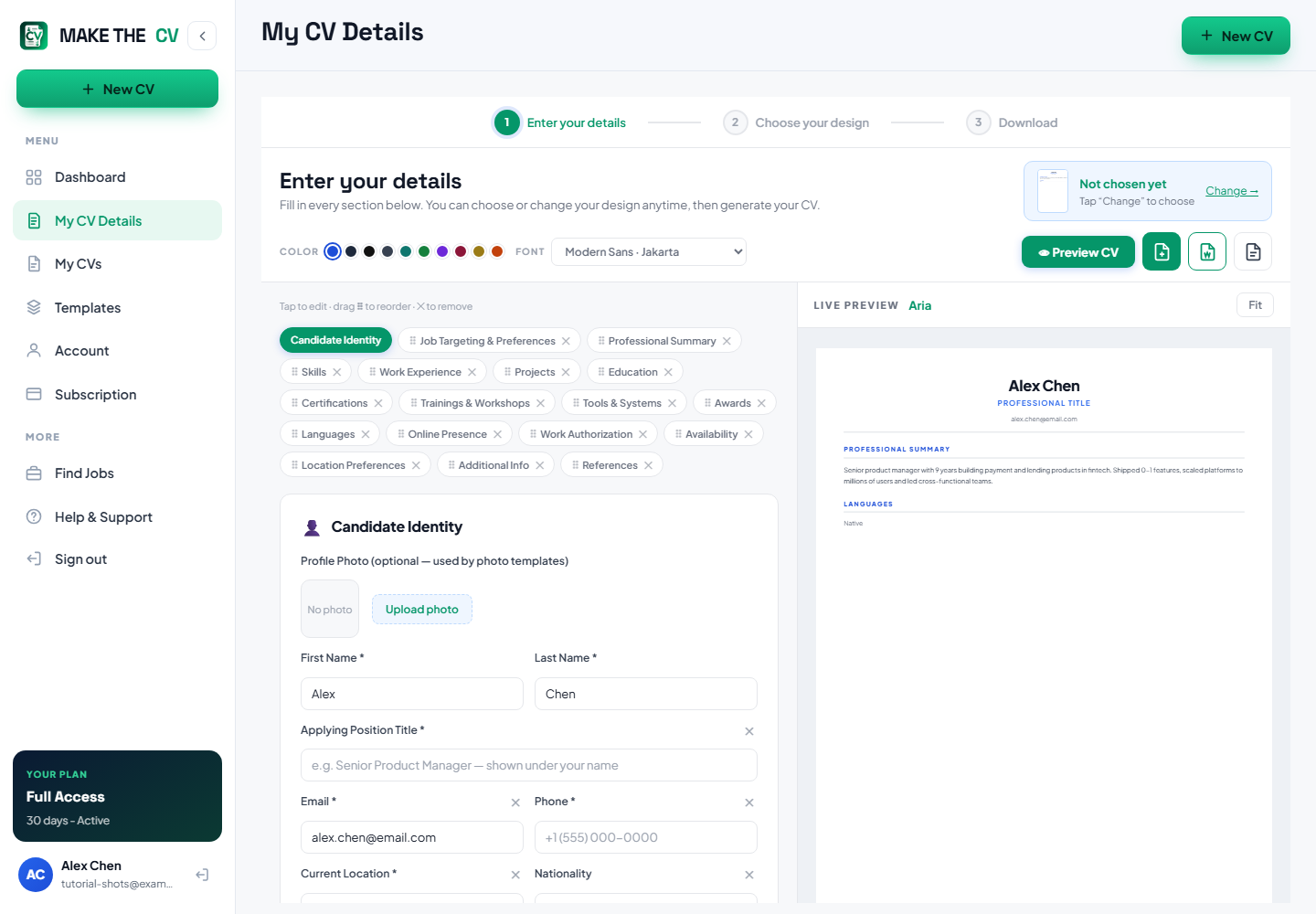
The builder opens on Enter your details. Work down the form: your name, the Applying Position Title, contact details, then each CV section. The Live Preview on the right redraws as you type, and the header shows Saved as you type — there is no separate save button.
TipOn a phone the preview sits below the form — use Preview CV to see the full page.
Write the Professional Summary
Three or four lines naming your role, your years of experience and the kind of work you are targeting. It sits at the top of the finished CV, so it is the part most likely to be read.
Add Work Experience and Education
Add one entry per role, most recent first, with the employer, dates and a few bullet points. Lead each bullet with a verb and include a number wherever you honestly can. Education follows the same pattern.
TipBullets that contain a measurable result read better to both recruiters and scanning software.
Add Skills and any other sections you need
There are 18 sections in total. Beyond Skills you can add Job Targeting & Preferences, Projects, Certifications, Trainings & Workshops, Tools & Systems, Awards, Languages, Online Presence, Work Authorization, Availability, Location Preferences, References and an Additional Info section for anything that does not fit elsewhere. Remove the chips you do not need.
Choose your design
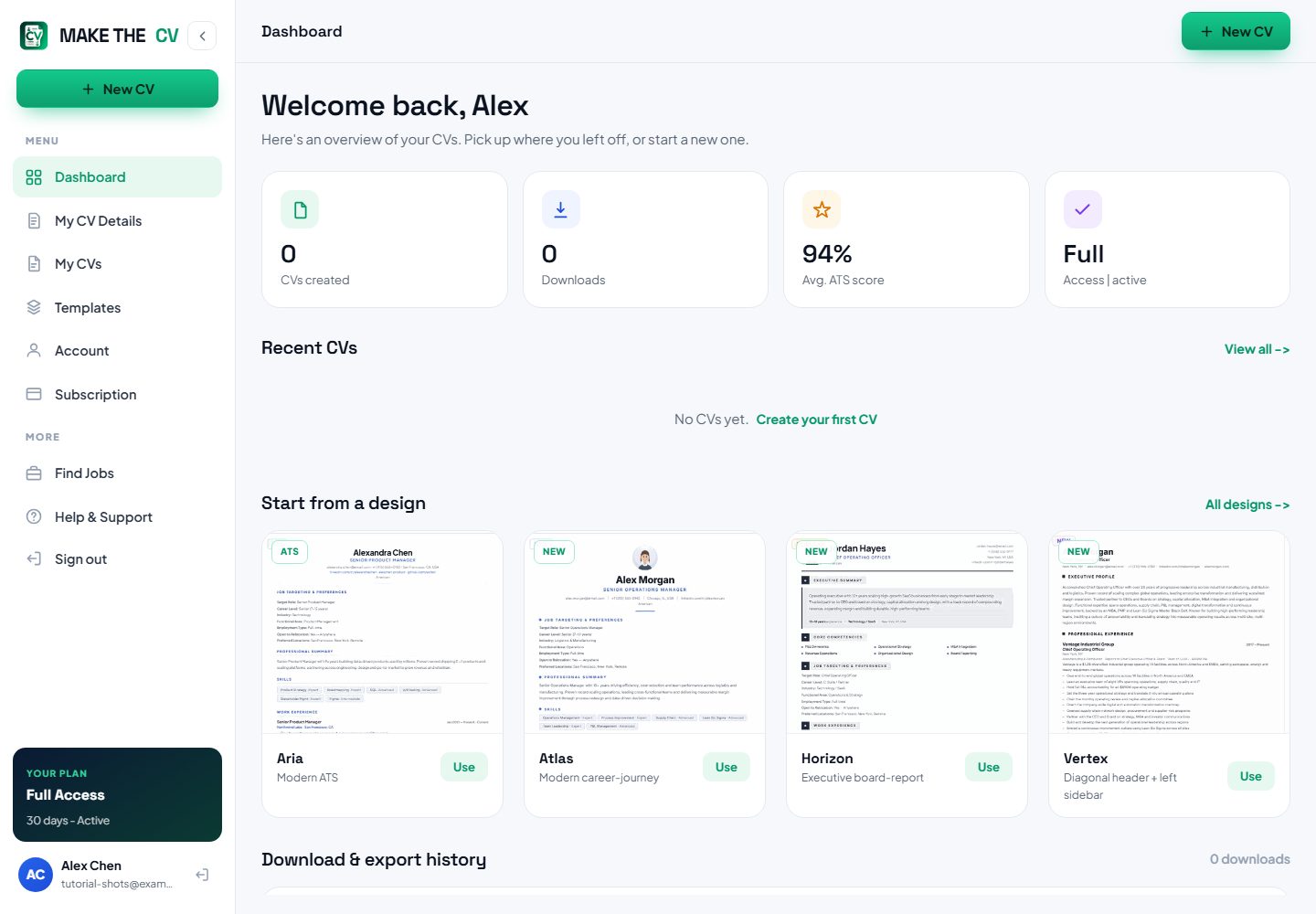
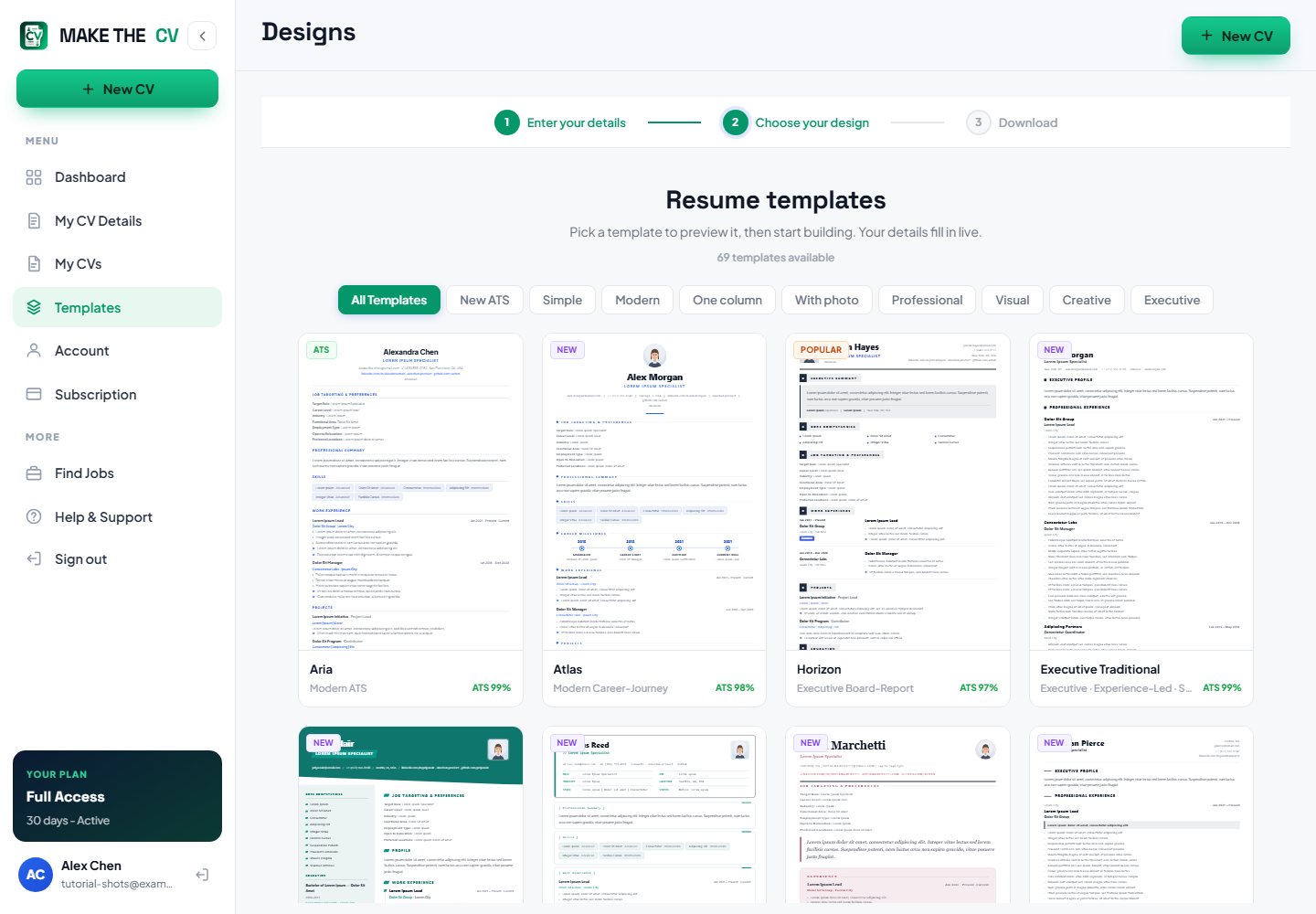
Open Choose your design to browse the template library. Filter with the tabs — All Templates, New ATS, Simple, Modern, One column, With photo, Professional, Visual, Creative, Executive — then Preview a design or press Use this template to apply it. Each card shows that design’s ATS score. Your content moves across untouched, so you can switch designs at any point.
Check the preview, then download
Look through the Live Preview for gaps and awkward line breaks, adjust the Font and Color if you want, then use Download to export the finished file.
TipBefore you send it anywhere, run the file through the ATS Resume Checker.
Questions people ask
Do I need to finish my CV in one sitting?
No. Everything you type is saved to your account as you go, so you can close the tab and pick it up later from My CVs.
Can I change the template after writing everything?
Yes. Your content is stored separately from the design, so applying a different template re-flows the same information.
How many CVs can I have?
You can build several and keep them side by side in My CVs — most people keep one per type of role they apply for.